Adjust your printer for A4 label sheets
Roasters Pal prints labels on A4 sheets such as Avery L7163, L7165 and L7166. Most printers print them exactly in place. Some printers, though, shrink the page a little or move it to fit their own margins. You see it as labels that start too low on the top rows, or run over the edge at the bottom, while the lower rows look fine.
You don't need to change any printer settings to fix this. Roasters Pal can measure how your printer places the page and print the sheets the other way round, so every label lands where it should. You do it once per printer and phone.
When you need it
- Labels on the top rows have more space above them than below.
- A label runs over the bottom edge of its place onto the next one.
- The offset is different on each row: bigger at the top of the sheet, smaller further down.
If your labels already sit in the middle of each place, you don't need the adjustment.
Before you start, check the printer dialog: if it has a scaling or fit to page option, set it to 100 % or actual size. Some printers then print exactly in place, and you're done.
What you need
- A sheet of plain A4 paper: there's no need to use a label sheet.
- A ruler with millimetres, ideally a steel one that starts right at its end.
1. Print the test page
- In Roasters Pal, open a roast's Labels screen.
- Tap the print settings bar under the label options and choose A4 sheet.
- Tap Printer, then Print test page, and print it on plain A4.
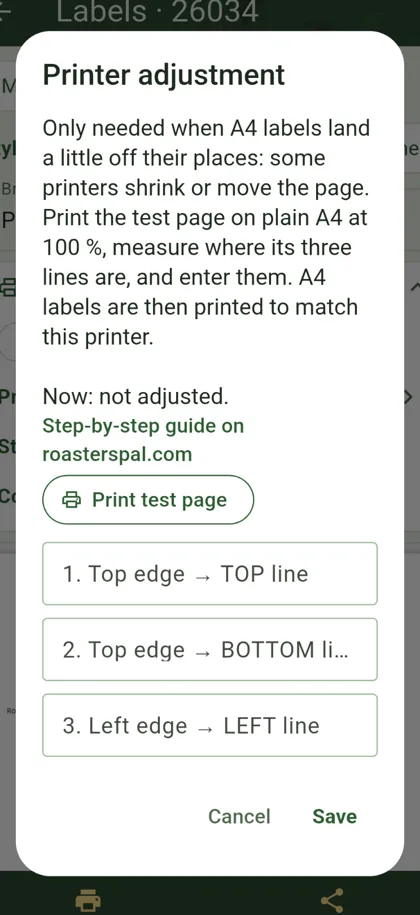
The test page has three lines: a TOP line 10 mm from the top edge, a BOTTOM line 287 mm from the top edge, and a LEFT line 10 mm from the left edge.
2. Measure three lines
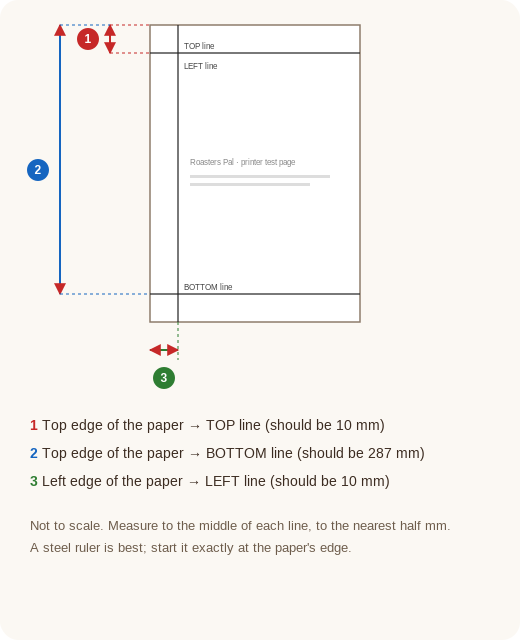
Lay the ruler with its zero exactly on the paper's edge and measure to the middle of each line:
- Top edge to the TOP line, for example 14 mm
- Top edge to the BOTTOM line, for example 282 mm
- Left edge to the LEFT line, for example 11 mm
Half millimetres are fine: 13.5 works.
3. Enter the numbers
Back in the Printer dialog, type the three numbers into the three boxes and tap Save. The print settings bar now shows adjusted.
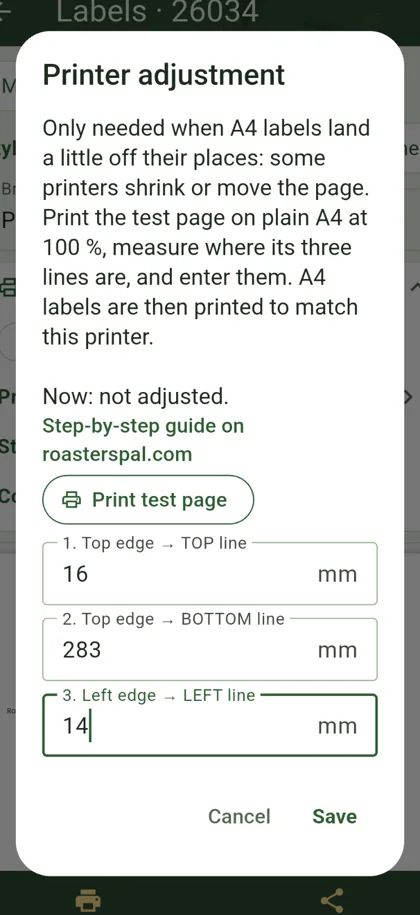
From the three numbers, Roasters Pal works out how much your printer shrinks the page and how far it moves it. It then prints every A4 label sheet slightly larger and shifted the other way, so the printer's own change puts the labels back in place.
4. Check it
Open Printer again. It now shows what your printer does (for example prints at 96.4 %, 6.4 mm lower, 4.4 mm to the right) and offers a check page.
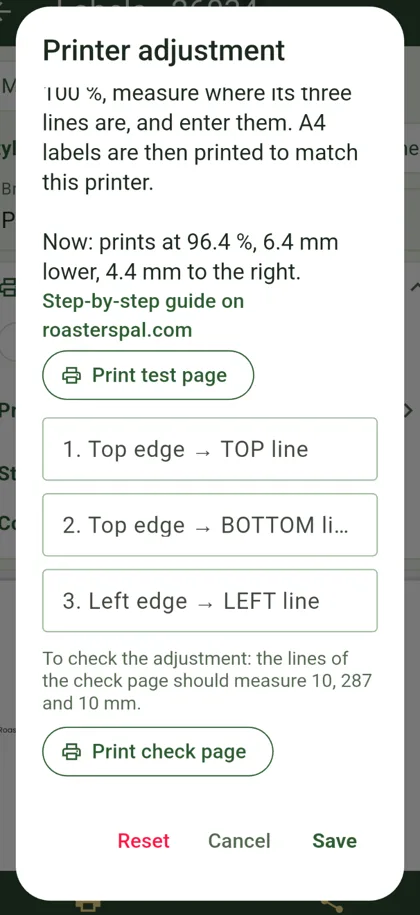
Tap Print check page. This is the test page with your adjustment applied. Its lines should now measure 10 mm, 287 mm and 10 mm. If they're within half a millimetre, you're done: print your labels.
If they're still off, measure the test page (not the check page) again, enter the new numbers and save.
Good to know
- The adjustment is saved on the phone. If you print from another phone or tablet, adjust it there too.
- It's for one printer. If you switch printers, measure again, or tap Reset if the new printer prints in place.
- It only changes A4 sheets. Brother label printers aren't affected.
- The preview and a shared PDF stay exactly to size, so a PDF printed from a computer at 100 % still lands in place.
Back to Roasters Pal home